🔐 Sign in & create account
Open the BiggerBlueButton dashboard and you'll land on the Welcome back screen. You can sign in with your email, continue with a social account, or create a brand-new account.
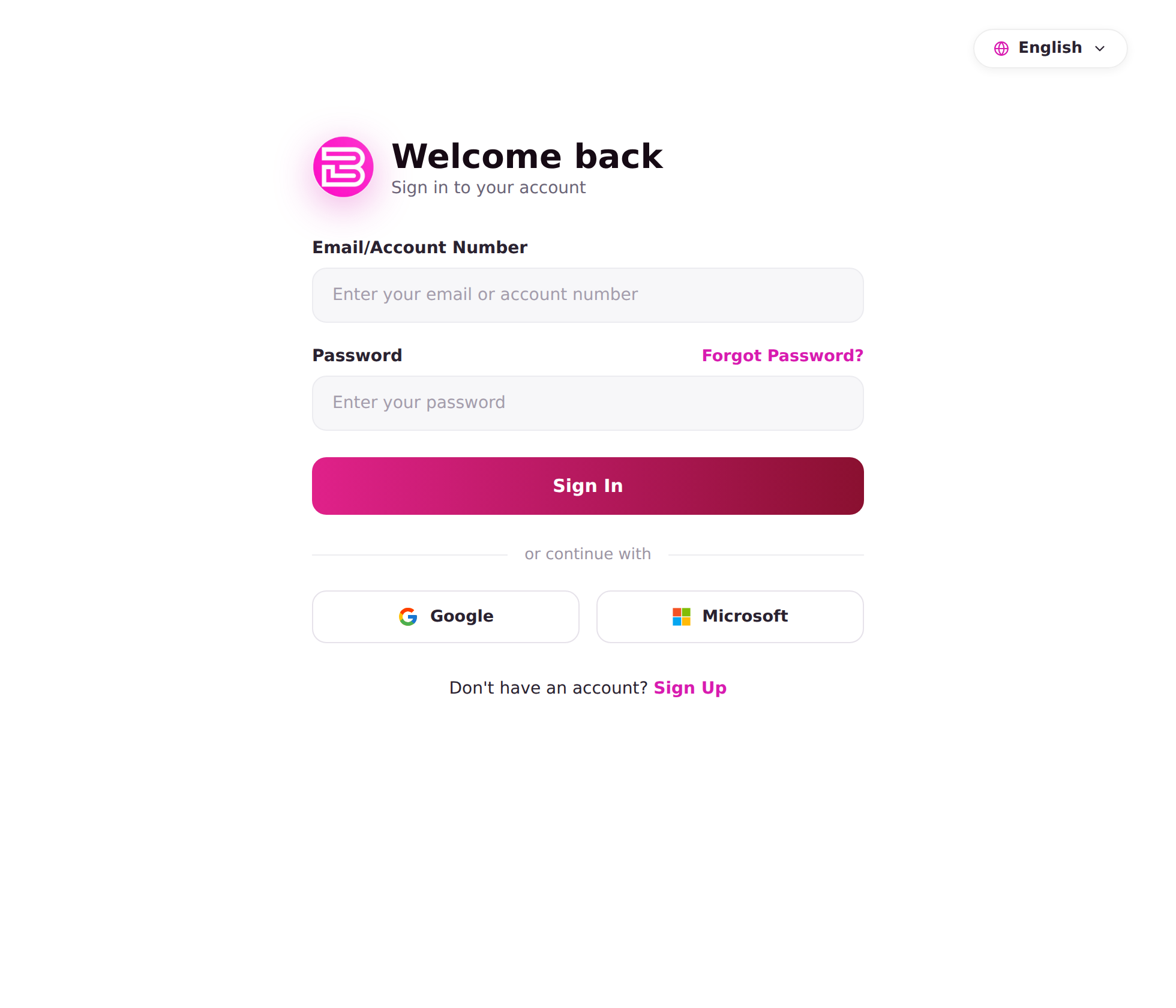
✉️ Sign in with email
- Enter your Email / Account Number.
- Enter your Password.
- Select Sign In.
Forgot your password? Choose Forgot Password? and follow the emailed reset link.
🌐 Continue with a social account
Under or continue with, pick a provider to sign in — or create your account — in one step, without setting a password:
 Google
 Microsoft
Create an account with Microsoft
New to BiggerBlueButton? Select Microsoft on the sign-in screen:
- You're redirected to the Microsoft sign-in page — use any personal (Outlook/Hotmail) or work / school (Microsoft 365) account.
- Approve the one-time permission prompt so BiggerBlueButton can read your name and email.
- You're returned to the dashboard, signed in. On first use, an account is created automatically from your Microsoft profile — no separate sign-up needed.
The same one-click flow works for Google.
If an account with the same email already exists, signing in with Microsoft links to that existing account instead of creating a duplicate.
🆕 Create an account with email
Don't have an account yet? Choose Sign Up at the bottom of the screen, then complete your details to finish registration. You can switch languages any time from the language selector in the top-right corner.