🗓️ Scheduling & Appointments
Turn any room into a scheduled meeting — a single appointment or a recurring class series — invite attendees, and let everyone add the event to their own calendar.
To browse and manage all your scheduled events in month / week / day views, see the Calendar page.
The schedule form is organised into clear sections:
Details → When → Recurrence → Meeting options → Invite people
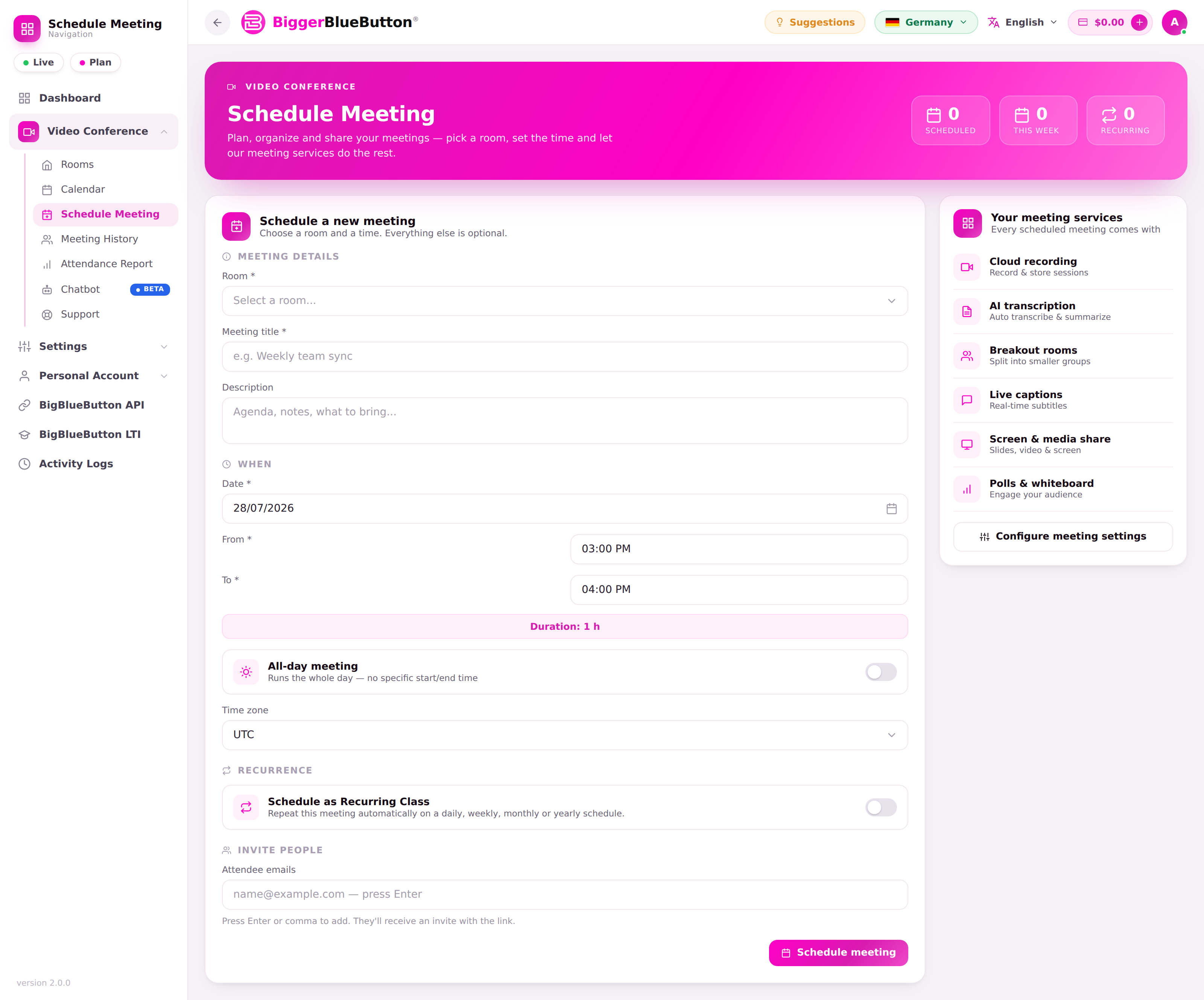
📌 Schedule a one-time meeting
- Open a room and choose Schedule Meeting (or use the room Calendar).
- Fill in the Meeting details: room, meeting title, and (optionally) a description.
- Set the When: date, From / To times (a live duration badge is shown), and a Time zone — the timezone defaults to your browser's. Use the All-day meeting toggle for a full-day event. End time must be after the start, and you can't schedule in the past.
- Under Invite people, add attendee emails as chips (press Enter or comma; invalid or duplicate emails are ignored).
- Click Schedule meeting. The event is saved and appears on the calendar.
Every scheduled meeting includes your room's full toolkit — cloud recording, AI transcription, breakout rooms, live captions, screen & media share, and polls & whiteboard. Use Configure meeting settings to fine-tune what's enabled.
Access to the Schedule Meeting page requires the schedule-meetings privilege. Root, admin, and manager accounts always have it.
🔁 Recurring class scheduler
Inside the Recurrence section, switch on “Schedule as Recurring Class” to make the meeting repeat automatically.
Repeat type
Choose the cadence: Daily, Weekly, Monthly, or Yearly.
Repeat on (weekly)
For a Weekly series, pick one or more weekdays (Sun–Sat). It defaults to the start date's weekday, and a smart label summarises your choice, e.g. “Weekly on Monday”, “Twice a week (Mon, Wed)”, or “Every day”.
Ends
Choose how long the series runs:
- Repeat indefinitely
- End by date — pick the day of the last class (must be on or after the start date).
Skip dates (exceptions)
Exclude individual dates from the series — pick a date, click Add date, and it appears as a removable chip.
Class summary
A live summary card shows the cadence, the end condition, any excluded dates, and the total number of sessions (shown as unlimited for an indefinite series).
✉️ Invitations
- Invitations are emailed to ad-hoc attendees and room participants — everyone is de-duplicated, so no one is emailed twice.
- Invitees see the event in their “My Invitations” feed, which merges meeting and room invites (newest first).
📅 Add to calendar
Each scheduled event offers add-to-calendar links for:
- Google Calendar
- Outlook / Office 365
- Yahoo Calendar
- Apple Calendar (via a downloadable
.icsfile)
The Apple .ics download works even when the invitee is not logged in, so external guests can still import the event.
💡 Tips
- Set the correct timezone — times are handled across DST and different browser timezones without drift.
- Use a term (semester) end for a school schedule, and Skip public holidays so no session lands on a day off.
- Watch the total sessions count in the summary card to confirm the series matches your plan.